📷 Hướng dẫn bật webcam trên VPS Windows
Chuyển tiếp webcam từ máy cá nhân vào phiên Remote Desktop.
Bước 1: Chọn webcam trên máy cá nhân
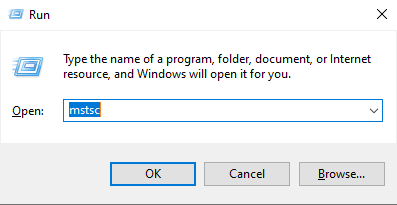
Nhấn Windows + R, nhập mstsc.
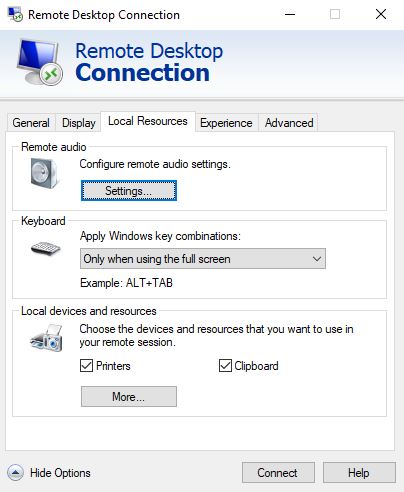
Chọn Show Options → Local Resources → More….
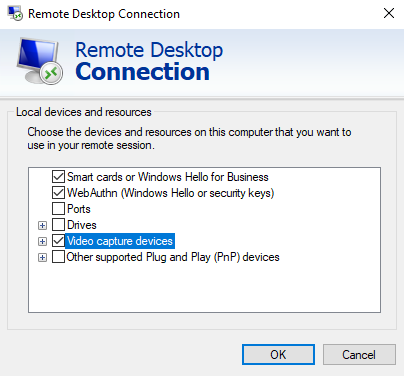
Tích Video capture devices, chọn webcam, nhấn OK rồi kết nối VPS.
Bước 2: Kiểm tra chính sách trên VPS
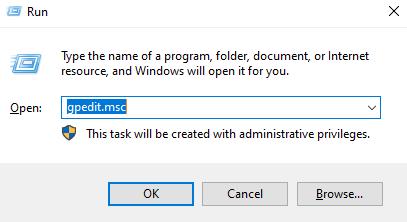
Mở gpedit.msc bằng Windows + R.
Đi đến Computer Configuration → Administrative Templates → Windows Components → Remote Desktop Services → Remote Desktop Session Host → Device and Resource Redirection.
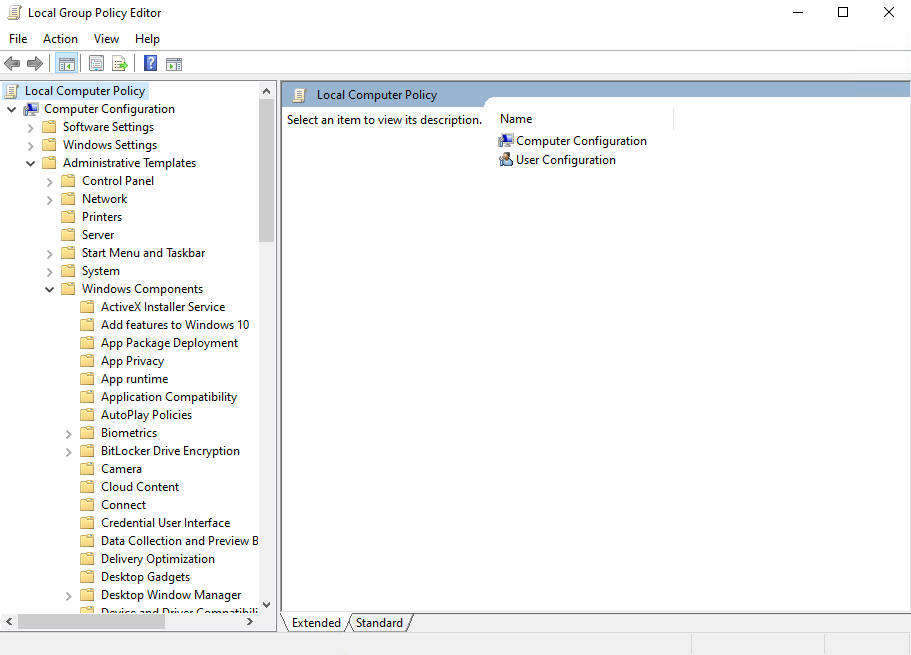
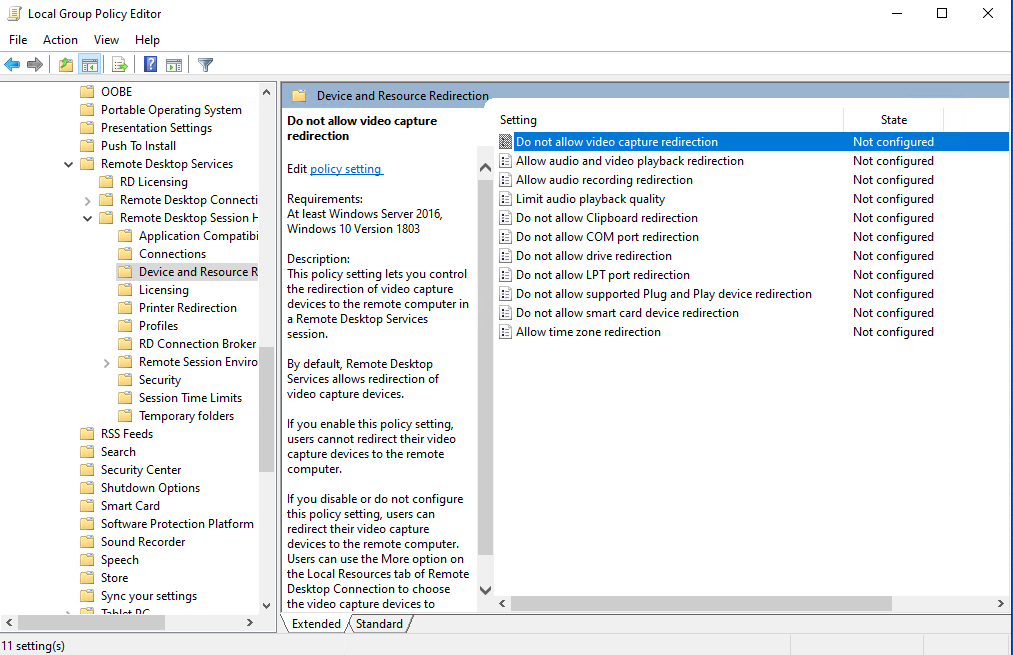
Đặt Do not allow video capture redirection thành Disabled, nhấn Apply → OK.
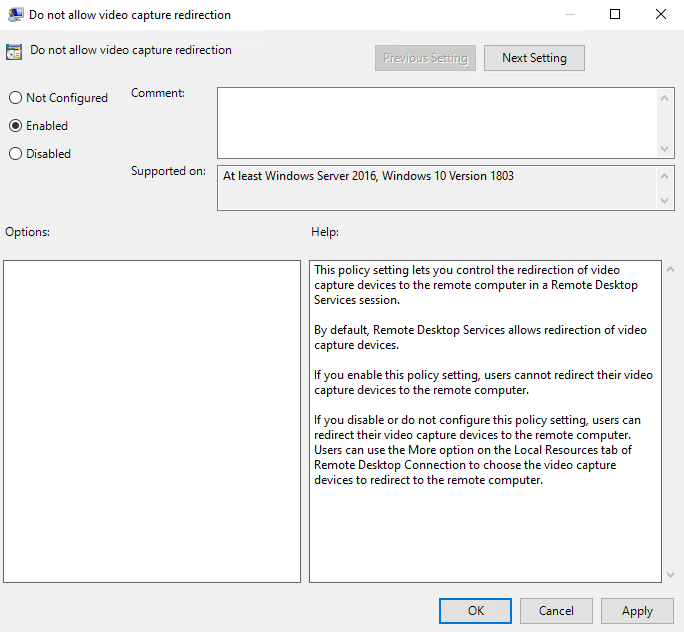
Lưu ý: Ảnh đang chọn Enabled, tức chặn webcam. Hãy chọn Disabled để cho phép chuyển tiếp.
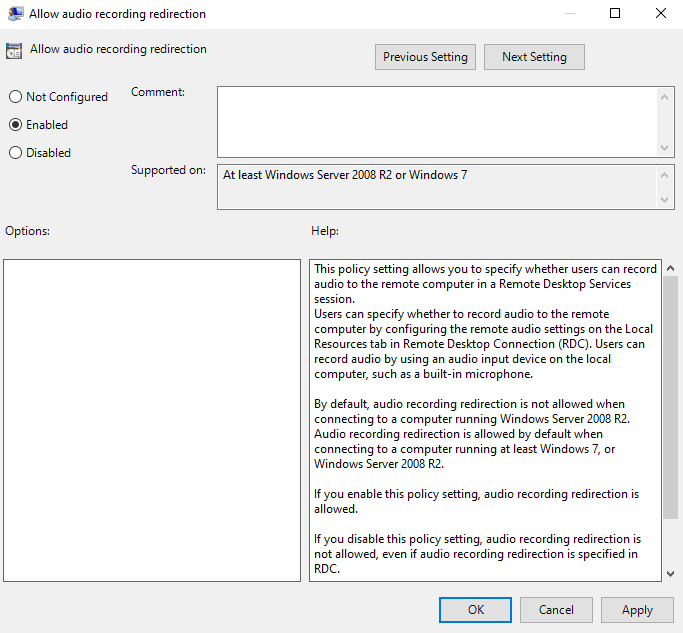
Nếu cần microphone, bật Allow audio recording redirection → Enabled và làm theo hướng dẫn âm thanh và microphone.
Bước 3: Kết nối lại và thử webcam
Khởi động lại VPS sau khi lưu công việc. Kết nối lại, chọn webcam trong ứng dụng cần dùng và thử hình ảnh. Kiểm tra quyền camera nếu chưa có hình.
Tham khảo: Remote Desktop Services trên Windows Server
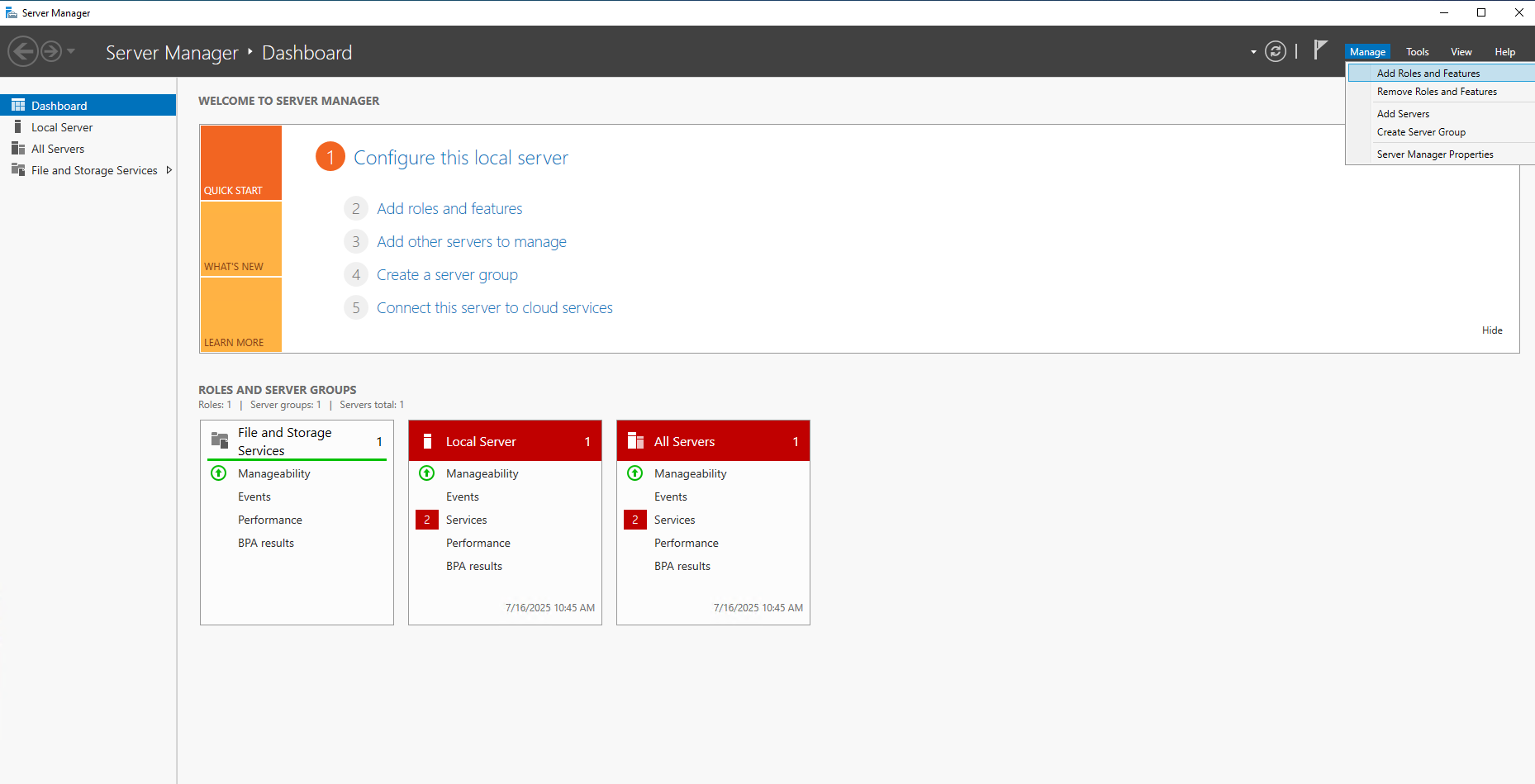
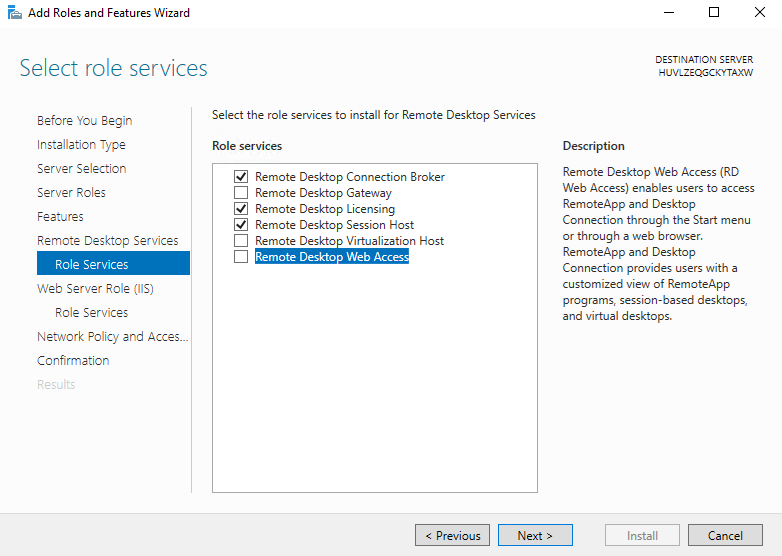
Nếu triển khai RDS, cấu hình vai trò theo hạ tầng và giấy phép của bạn; không cần cài toàn bộ vai trò trong ảnh chỉ để thử webcam.
Server Manager → Manage → Add Roles and Features.
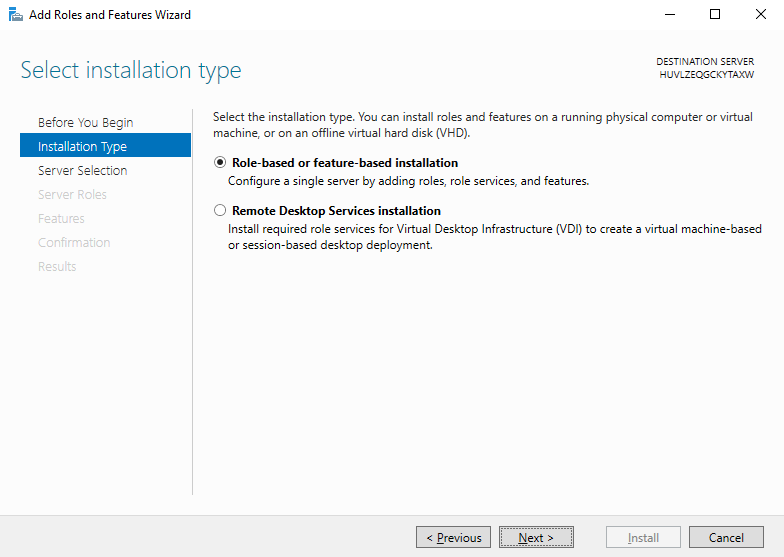
Chọn Role-based or feature-based installation.
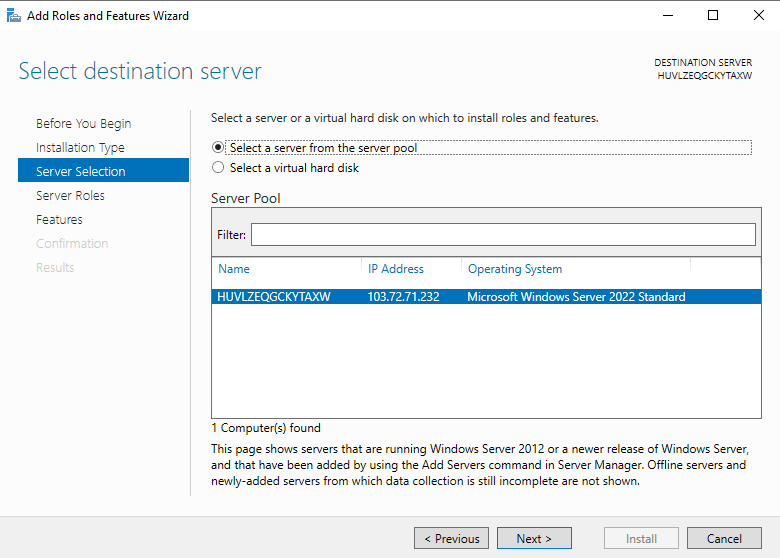
Chọn máy chủ đích.
Mở Remote Desktop Services.
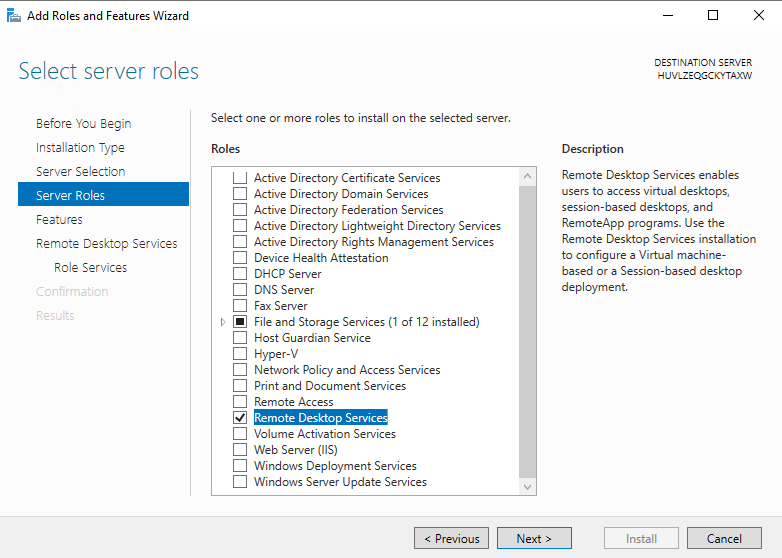
Chọn Role Services phù hợp, xác nhận cài đặt và khởi động lại khi được yêu cầu.
Tham khảo kỹ thuật: Microsoft: Cấu hình chuyển tiếp camera qua RDP.